Estimated Reading Time: 7 - 8 minutes
Printing a document only to file it, circulate it or scan it again creates unnecessary work. For many businesses, there is a much simpler approach: print less and make better use of the scanning technology already available in the office.
Modern Multi-Function Devices (MFDs), including many devices from Brother, can do considerably more than print and photocopy. When configured correctly, they can scan documents directly into network folders, document libraries and cloud-based storage, helping businesses create faster and more consistent digital workflows.
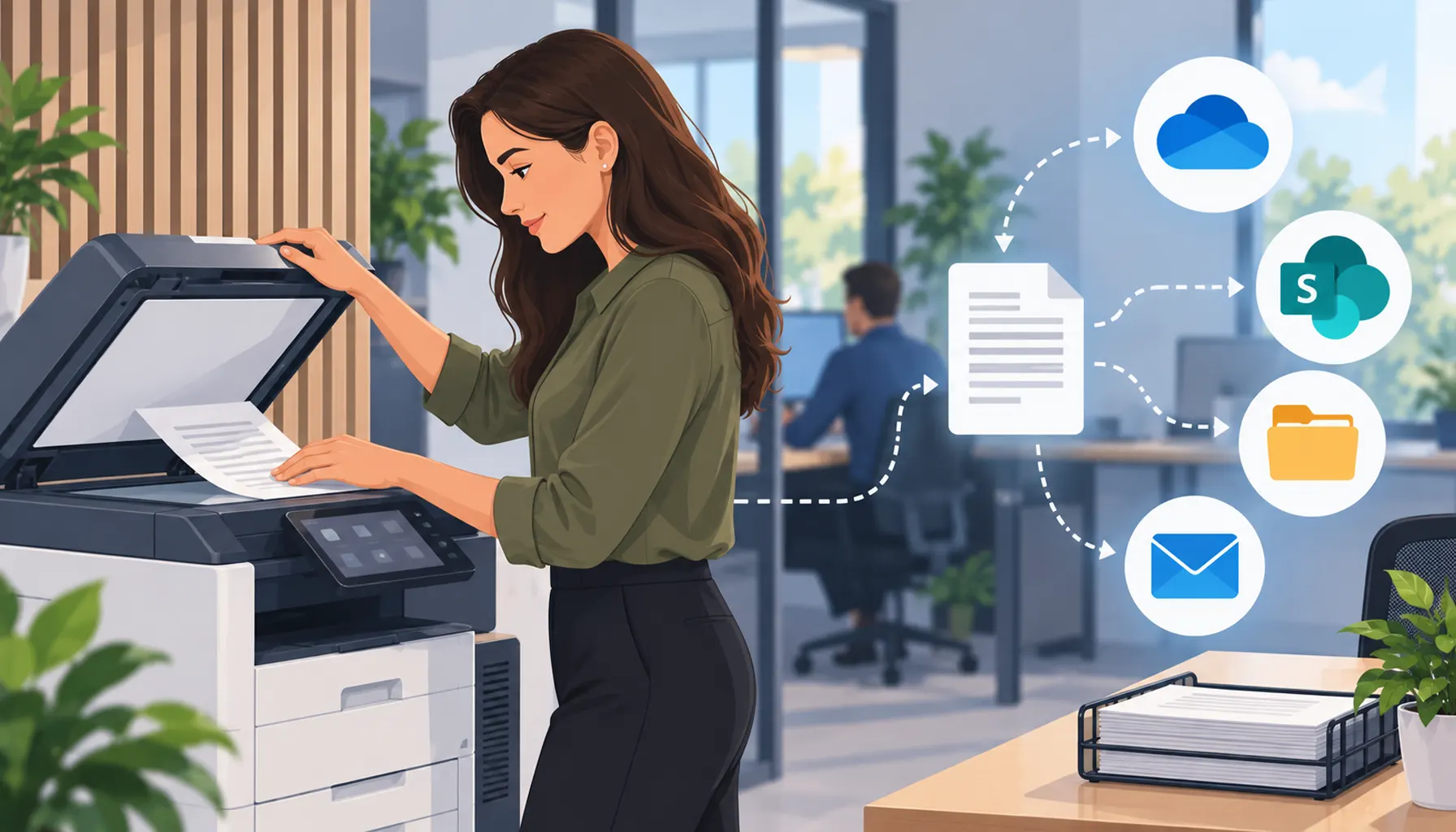
Instead of scanning a document, emailing it to yourself, downloading the attachment and then manually moving it into the right folder, the device can potentially send it directly to its intended destination.
For businesses looking to reduce paper use, improve document management and make everyday processes more efficient, advanced scanning can be a relatively simple place to start.
Why Should Businesses Reduce Printing?
There will always be situations where a physical document is useful or necessary, but many everyday office processes no longer need to depend on paper.
Printing unnecessarily can create additional:
- Paper and consumable costs.
- Storage requirements.
- Manual filing.
- Document duplication.
- Administrative work.
- Risk around documents being left on desks or printers.
Moving appropriate processes towards digital documents can make information easier to store, find, share and protect.
The objective does not have to be a completely paperless office. For many organisations, a more practical goal is simply to stop printing documents that never needed to be printed in the first place.
What Is a Multi-Function Device?
A Multi-Function Device, commonly referred to as an MFD or Multi-Function Printer, combines several office document functions within one device.
Depending on the model and configuration, this can include:
- Printing.
- Photocopying.
- Scanning.
- Document feeding.
- Scan-to-email.
- Scanning to network locations.
- Scanning to cloud-based services.
It is the scanning capability that is often underused.
Rather than treating the device purely as a printer, businesses can use an appropriately configured MFD as a document capture point, turning incoming paper documents into digital information and routing them to the appropriate location.
How Can Modern Office Scanning Improve Document Workflows?
A traditional scanning process can involve several unnecessary steps.
An employee might:
- Place the document in the scanner.
- Scan it to their email address.
- Return to their computer.
- Open the email.
- Download the attachment.
- Rename the file.
- Find the correct folder.
- Move or upload the document.
Multiply that process across several employees and hundreds of documents and a small inefficiency becomes a considerable amount of wasted time.
Modern scanning workflows can remove some of these steps by sending documents directly from the MFD to a predefined destination.
Can You Scan Documents Directly to Cloud Storage?
Depending on the device, software and environment, modern Multi-Function Devices can support a range of scanning destinations.
These may include:
- Network folders.
- FTP or SFTP servers.
- Document management systems.
- Cloud storage platforms.
- Microsoft SharePoint.
- Other supported business applications and storage locations.
This can allow a paper document to be captured and sent directly into the organisation's digital filing structure without requiring an employee to manually transfer it from their inbox afterwards.
1. Cloud-First Scanning
Many modern MFDs can be configured to route scans to predefined digital destinations.
For example, a business may want:
- Supplier documents routed to an accounts location.
- Signed forms stored in a specific document library.
- Customer paperwork saved into an appropriate shared folder.
- Internal documents routed to a central team location.
Scan profiles or shortcuts can be configured in advance, depending on the equipment and software being used.
Instead of every employee deciding where a document should go each time, the scanning workflow can help provide a more consistent route into the organisation's digital storage.
Benefits of Cloud-First Scanning
- Faster access to documents across teams.
- Less dependence on individual email inboxes.
- More consistent document storage.
- Reduced manual handling.
- Better alignment with cloud-based working practices.
Can You Scan Directly to SharePoint?
For businesses using Microsoft 365, SharePoint is commonly used to store documents that need to be shared across a team or organisation.
Where the device and configuration support it, scanning documents into an appropriate SharePoint-based workflow can help reduce the number of manual steps between receiving a paper document and making it available digitally.
This is particularly useful when SharePoint is already being used as the organisation's central location for shared business documents.
Rather than an important document ending up in one employee's inbox or personal storage, it can be directed towards the shared location where authorised colleagues expect to find it.
If your organisation is already using Microsoft 365, you can also read our guide to Microsoft Teams, SharePoint and OneDrive to understand how these services can support business collaboration and file storage.
2. Productivity and Workflow Automation
Scanning to email can be useful, but it can also create unnecessary administrative work when the final destination of the document is already known.
One-touch scanning and predefined destinations can make repetitive document processes considerably simpler.
For example, rather than asking employees to remember:
“Scan this, email it to yourself, rename it and then put it in this folder.”
The process could potentially become:
“Select this scanning profile and scan the document.”
The fewer manual steps involved in a repetitive process, the fewer opportunities there are for documents to be forgotten, incorrectly filed or left sitting in somebody's inbox.
Productivity Benefits of Advanced Scanning
- Less time spent manually moving documents.
- More consistent document filing.
- Faster access to information.
- Reduced dependency on individual employees remembering filing processes.
- More repeatable digital workflows.
3. Can Scanning Improve Document Security?
Reducing unnecessary paper can also form part of a wider information security strategy.
Physical documents can be:
- Left unattended on printers.
- Misfiled.
- Copied unnecessarily.
- Left on desks.
- Disposed of incorrectly.
Moving an appropriate process to controlled digital storage can reduce some of these risks, particularly when the destination itself has suitable permissions and security controls.
Depending on the device and configuration, scanning systems may also support features such as secure communications, SFTP, encrypted PDF creation and password protection.
However, scanning a document does not automatically make it secure. Businesses still need to consider who can access the destination, how accounts are protected, where documents are stored and how that data is backed up.
If documents are being stored in Microsoft 365, our guide to why you still need to back up cloud data explains why cloud storage and backup should not automatically be treated as the same thing.
Could You Stop Scanning Documents to Email?
Scan-to-email remains useful, particularly where a document genuinely needs to be sent to somebody.
But if the employee is simply emailing the scan to themselves so that they can save it somewhere else, there may be an opportunity to improve the process.
Ask:
- Where does this document ultimately need to end up?
- Could the scanner send it there directly?
- Could a predefined profile remove some of the manual steps?
- Does everybody currently file these documents in the same way?
Looking at the final destination rather than the scanning process itself can reveal simple opportunities for automation.
Which Business Processes Could Benefit from Better Scanning?
The opportunities will depend on the organisation, but any repetitive process involving paper is worth reviewing.
Examples could include:
- Supplier and purchasing documents.
- Signed forms and agreements.
- Customer paperwork.
- HR documentation.
- Delivery paperwork.
- Project documentation.
- Internal administrative records.
The important point is not simply to digitise paper for the sake of it. The aim should be to make the whole document workflow simpler.
Do You Need a New Printer to Improve Your Scanning Process?
Not necessarily.
For many organisations, the capability to improve document workflows may already be sitting in the office but simply isn't being fully utilised.
Before replacing existing equipment, it can be worth reviewing:
- What scanning features the current MFD supports.
- Whether useful scan profiles have been configured.
- Where employees currently send scanned documents.
- Which repetitive processes could be simplified.
- Whether the device can integrate appropriately with the organisation's existing IT environment.
Sometimes the improvement comes not from buying more technology, but from making better use of the technology you already have.
Managed Print Services and Your Wider IT Environment
Printers and Multi-Function Devices should not be considered entirely separately from the rest of the organisation's technology.
They interact with networks, user accounts, email, cloud storage, document systems and security controls.
A well-planned print and scanning environment should therefore complement the organisation's wider IT strategy rather than creating another isolated system for employees to manage.
For organisations looking more broadly at how their printing environment is managed, you can read our guide to why businesses use a Managed Print Services company.
Frequently Asked Questions
How can a business reduce office printing?
Start by identifying documents that are printed purely so they can be circulated, filed or scanned again. Where appropriate, these processes may be moved to digital workflows using cloud storage, document management systems and the scanning capabilities already available on modern Multi-Function Devices.
Can a Multi-Function Printer scan directly to SharePoint?
Some Multi-Function Devices and associated software can support workflows that send scanned documents to SharePoint or other cloud-based storage locations. The available options depend on the device, configuration, Microsoft 365 environment and software being used.
Is scanning to a network folder better than scanning to email?
It depends on the purpose of the document. If the scan ultimately needs to be stored in a shared business location, scanning directly to an appropriate folder can remove the additional steps of emailing, downloading and manually filing the document. Scan-to-email remains useful when the document genuinely needs to be sent by email.
Can an MFD scan directly to cloud storage?
Many modern MFDs can support scanning to digital destinations including network locations, FTP or SFTP servers and supported cloud services. The exact capabilities vary by manufacturer, model, software and configuration.
Is scanning more secure than keeping paper documents?
Digital workflows can reduce risks associated with unattended, duplicated or misfiled paper documents, but scanning alone does not make information secure. Digital documents still need appropriate access controls, secure storage, account protection and backup arrangements.
What is one-touch scanning?
One-touch scanning uses a predefined scanning profile or shortcut to send a document to a configured destination with minimal user input. This can help businesses create faster and more consistent document workflows for repetitive tasks.
Do we need a new printer to use cloud scanning?
Not always. Existing Multi-Function Devices may already support advanced scanning features that have not been configured or fully utilised. It is worth reviewing the capabilities of the current equipment before assuming it needs to be replaced.
What are Managed Print Services?
Managed Print Services involve specialist management and support of an organisation's printing environment. Depending on the provider and service, this can include equipment, maintenance, consumables, print management and advice on improving printing and document workflows.
The Bottom Line
Modern Multi-Function Devices are capable of far more than printing and photocopying.
When configured effectively, scanning can help businesses reduce unnecessary printing, route documents more consistently, improve access to information and remove repetitive administrative steps.
The biggest opportunity may be to look at the processes your employees repeat every day:
Are they printing something that could remain digital? Are they scanning something to themselves only to move it somewhere else? Could the MFD send it directly to the right place?
Small improvements to those everyday workflows can add up to meaningful time savings across a business.
Explore Managed Print Services
This article has been kindly provided by Archway Business Solutions Ltd, Telanova's trusted Managed Print Services partner.
While Telanova focuses on delivering high-quality IT support and strategic technology guidance, Archway provides specialist expertise in print management, helping organisations manage their printing environment and identify opportunities to improve document workflows.
If you would like to understand how Managed Print Services could benefit your organisation, Archway Business Solutions Ltd can provide specialist advice on your printing and scanning requirements.