Estimated Reading Time: 3 minutes
Sharing calendars in Outlook is a simple way to keep your team aligned - whether you’re scheduling client visits, internal catch-ups, or project milestones.
If your business uses Microsoft 365, shared calendars can save a surprising amount of time. Instead of forwarding meeting invites and chasing availability, you can give the right people the right level of access - from “busy only” right through to full editing permissions.
If You’re Using the Outlook Desktop App
- Open Outlook and switch to Calendar view.
- In the left-hand panel, right-click the calendar you want to share.
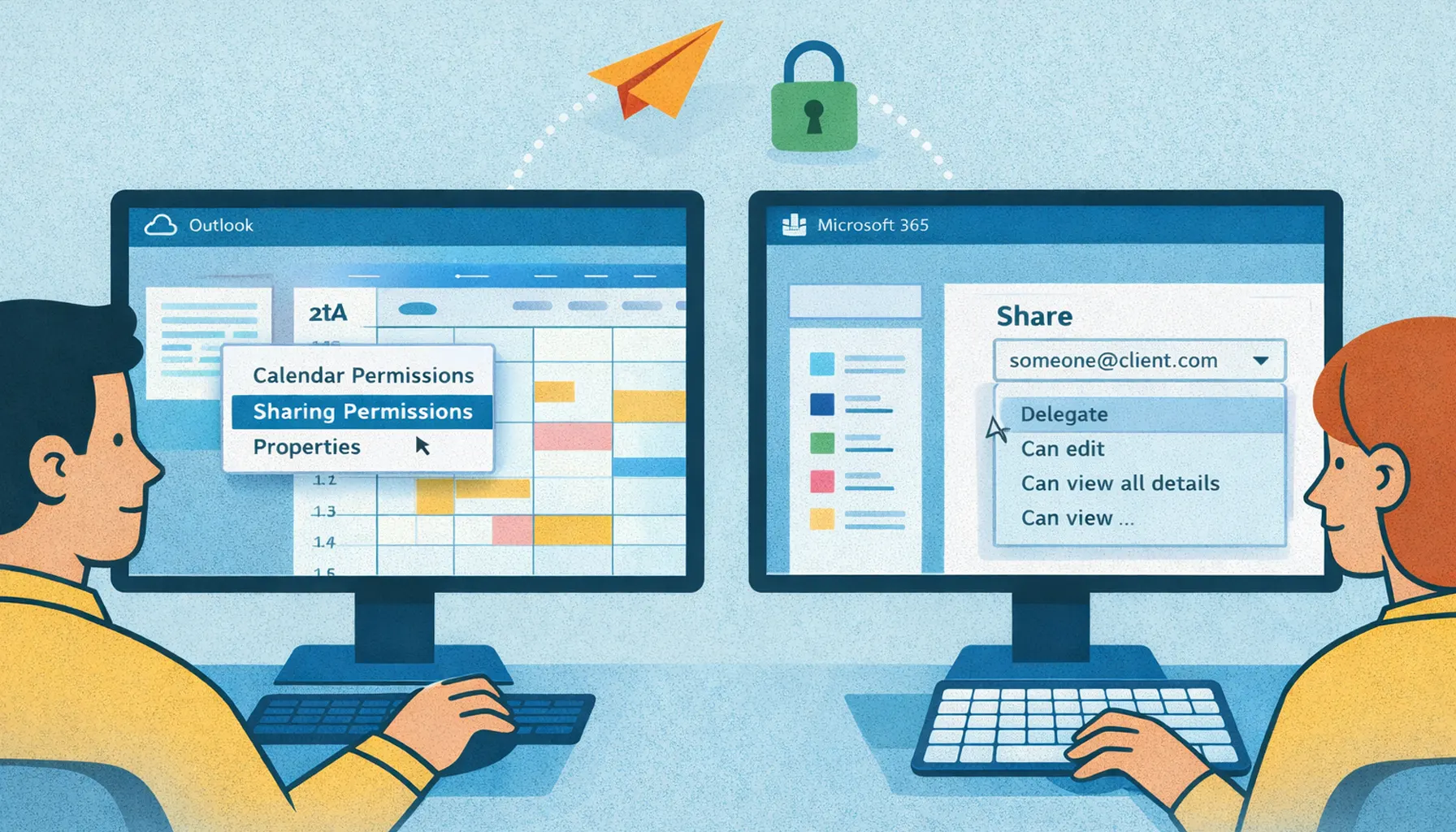
- Select Sharing Permissions (or Properties, depending on your version).
- Click Add and choose the person you want to share with.
- Choose the permission level:
- Can view when I’m busy
- Can view titles and locations
- Can view all details
- Can edit
- Delegate (can manage your calendar on your behalf)
- Click OK to save.
If You’re Using Outlook on the Web (Microsoft 365)
- Go to https://outlook.office.com and open Calendar.
- Right-click the calendar you want to share.
- Select Sharing and permissions.
- Enter the email address of the person you want to share with.
- Choose the appropriate permission level.
- Click Share.
A Few Tips for Sharing Calendars Securely
- Keep it secure: Only give Edit or Delegate access to people who genuinely need it.
- Use naming conventions: If you manage multiple shared calendars (e.g. “Support Rota” or “Client Visits”), clear names reduce confusion.
- Review access regularly: Especially when someone changes role or leaves - removing access is part of good housekeeping.
Frequently Asked Questions
What’s the best permission level for most staff?
For most teams, Can view titles and locations is a good balance - it helps scheduling without exposing private details.
What’s the difference between “Can edit” and “Delegate”?
Can edit lets someone change calendar items. Delegate is typically used when someone manages your diary on your behalf and may include extra permissions depending on configuration.
Can I share my calendar with external clients?
In many Microsoft 365 setups, yes - but it depends on your organisation’s sharing policies. If external sharing is restricted, Telanova can help configure this securely.
Why can’t I see the calendar after it’s been shared?
Common causes include the wrong permission level, the invite not being accepted, or organisation-level sharing restrictions. We can quickly diagnose and fix this.
Need Help Setting Up Shared Calendars?
At Telanova, we help businesses across Wokingham, Ascot, Bracknell, Reading, and the wider Berkshire region get more value (and fewer headaches) from Microsoft 365 - including shared calendars, permissions, and secure collaboration.
Explore our IT support services or call 01344 989 530 and we’ll help you get it set up properly.