Estimated reading time: 5 minutes
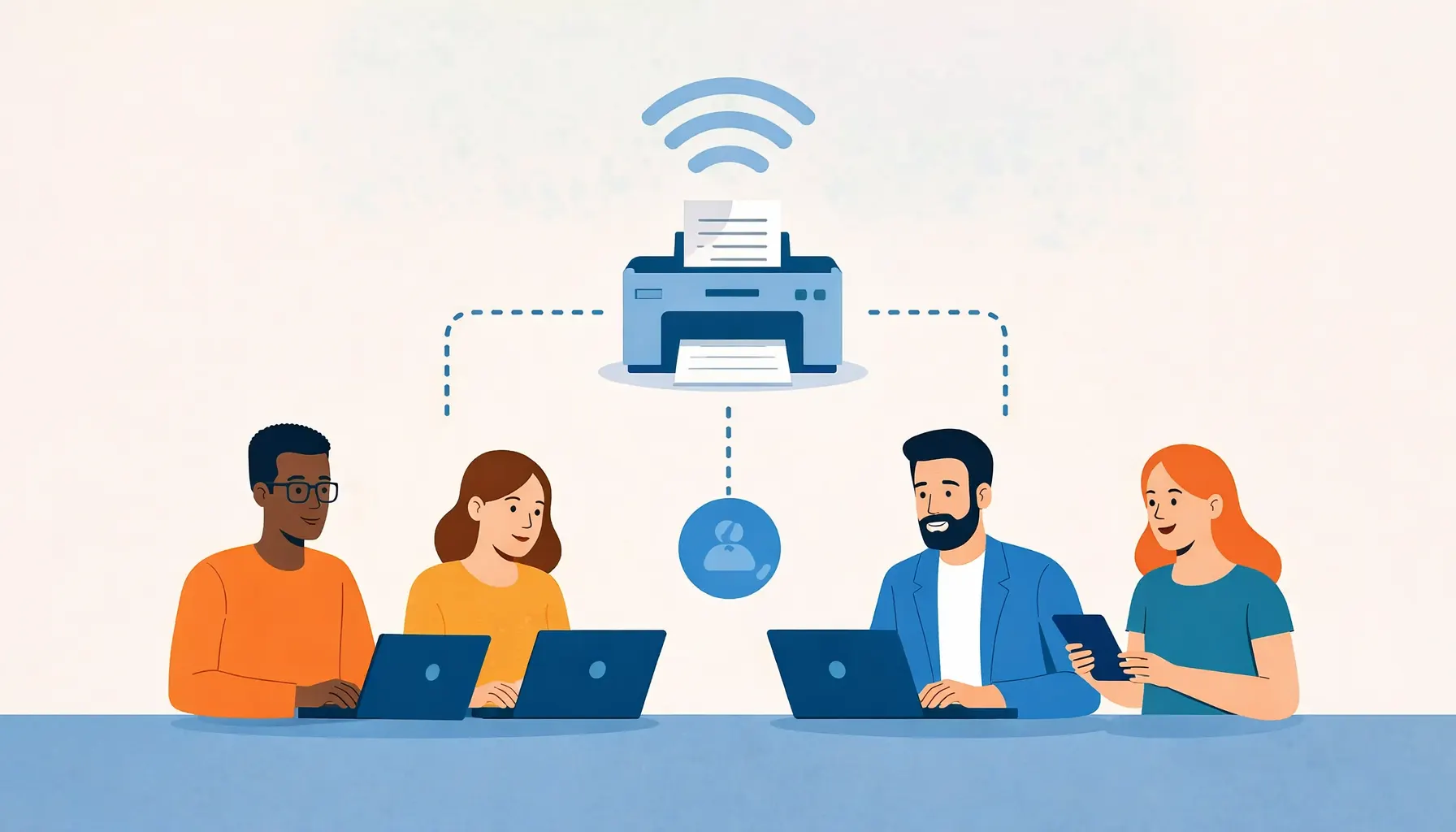
If you’ve found yourself as the accidental IT person in your small business, you’re probably wondering, “How can I link the printer to everyone’s computer?” You’re definitely not alone.
Printer sharing is one of those everyday office challenges that sounds simple but can quickly become frustrating. Getting it right, however, makes everyone’s life easier - fewer interruptions, fewer support calls, and far less confusion.
Whether your business uses a traditional Windows server, Microsoft 365, Google Workspace, or a mix of devices, this guide walks you through the most effective ways to share a printer across your team.
Understanding Printer Types: What Are You Trying to Share?
Before diving into setup, it helps to understand what type of printer you’re working with:
- Wired network printers – Connected directly to your network via Ethernet. Reliable and easy to share.
- Wireless network printers – Connected over Wi-Fi, offering flexible placement but dependent on signal quality.
- USB printers – Plugged into a single computer. Can be shared, but often require extra configuration.
Scenario 1: Traditional Windows Server Environment
If your office uses a Windows Server, this is the most established and controlled approach.
The printer is added directly to the server and shared using built-in Windows functionality. Network printers work best in this setup.
You can then use Group Policy Preferences (GPP) to automatically deploy the printer to:
- All users
- Specific departments
- Selected devices
This approach offers central management, consistent driver control, and minimal user involvement.
Scenario 2: Microsoft 365 & Entra ID (No Servers)
Many small businesses now run without on-premise servers, relying instead on Microsoft 365 and Entra ID.
You can still link a printer to everyone’s computer using Microsoft Universal Print.
How Universal Print Works
- Register the printer with Universal Print (or use a Windows PC as a connector if unsupported).
- Assign permissions via Entra ID so staff can access it.
- Users add the printer from their device settings.
This solution is ideal for hybrid and remote teams and works across multiple locations.
Note: Universal Print requires Microsoft 365 Business Premium, E3, E5, or a standalone Universal Print licence.
Scenario 3: NAS-Based Printer Sharing
If your office already uses a NAS device (such as Synology or QNAP), many models include built-in print server functionality.
Typical steps include:
- Connecting the printer to the NAS (USB or network)
- Enabling print services in the NAS admin interface
- Adding the printer on user computers using the NAS IP address
This is a tidy option for small offices already using a NAS for file storage.
Scenario 4: Mixed or Ad-Hoc Office Setups
Some workplaces use a mix of Windows PCs, Macs, and other devices. In these cases, flexibility is key.
Options include:
- Network printer sharing using the printer’s IP address
- USB printer sharing via Windows or macOS sharing settings
- Third-party tools such as PaperCut NG or PrinterShare
- Email-to-print for supported printer models
These approaches work well for very small teams or home-based offices.
Best Practices & Troubleshooting Tips
- Keep printer drivers up to date
- Always test with a simple document first
- Share printer names and IP addresses clearly with staff
- Ensure reliable network or Wi-Fi connectivity
- If in doubt - restart the printer and the device
Making Printing Simple for Your Team
Sharing a printer across your office doesn’t need to be complicated. Whether you’re using a server, cloud-based tools, a NAS, or a mixed environment, there’s a reliable solution that fits your setup.
If you’d rather not spend time troubleshooting printer issues, we can take care of it for you - from setup to ongoing support.
Frequently Asked Questions
Can one printer be shared by multiple computers?
Yes. Most modern printers support network sharing, allowing multiple users to print from different devices.
Is Universal Print better than a print server?
For cloud-first and remote teams, Universal Print is often simpler. For offices with servers, traditional print servers still offer excellent control.
Do USB printers work for offices?
They can, but network or cloud-based printers are usually more reliable and easier to manage.
Why do printers keep disconnecting?
Common causes include outdated drivers, Wi-Fi signal issues, or power-saving settings on the printer.
Can Telanova manage printer setup?
Yes. We handle printer deployment, driver management, permissions, and troubleshooting as part of our IT support services.
Need Help Setting Up Office Printing?
At Telanova, we support businesses across Wokingham, Ascot, Bracknell, Reading, and the wider Berkshire region with practical, frustration-free IT support.
If your printers are causing disruption or you’re setting up a new office, we’re happy to help.
Explore our IT support services or call 01344 989 530 to speak with our team.