
Estimated Reading Time: 11 - 12 minutes
As a small business grows, keeping track of its laptops, computers, mobile devices and security settings becomes increasingly challenging.
New employees need equipment configured, existing devices require regular updates, and staff working remotely still need secure access to company information. Meanwhile, businesses must protect sensitive data without making everyday work unnecessarily complicated.
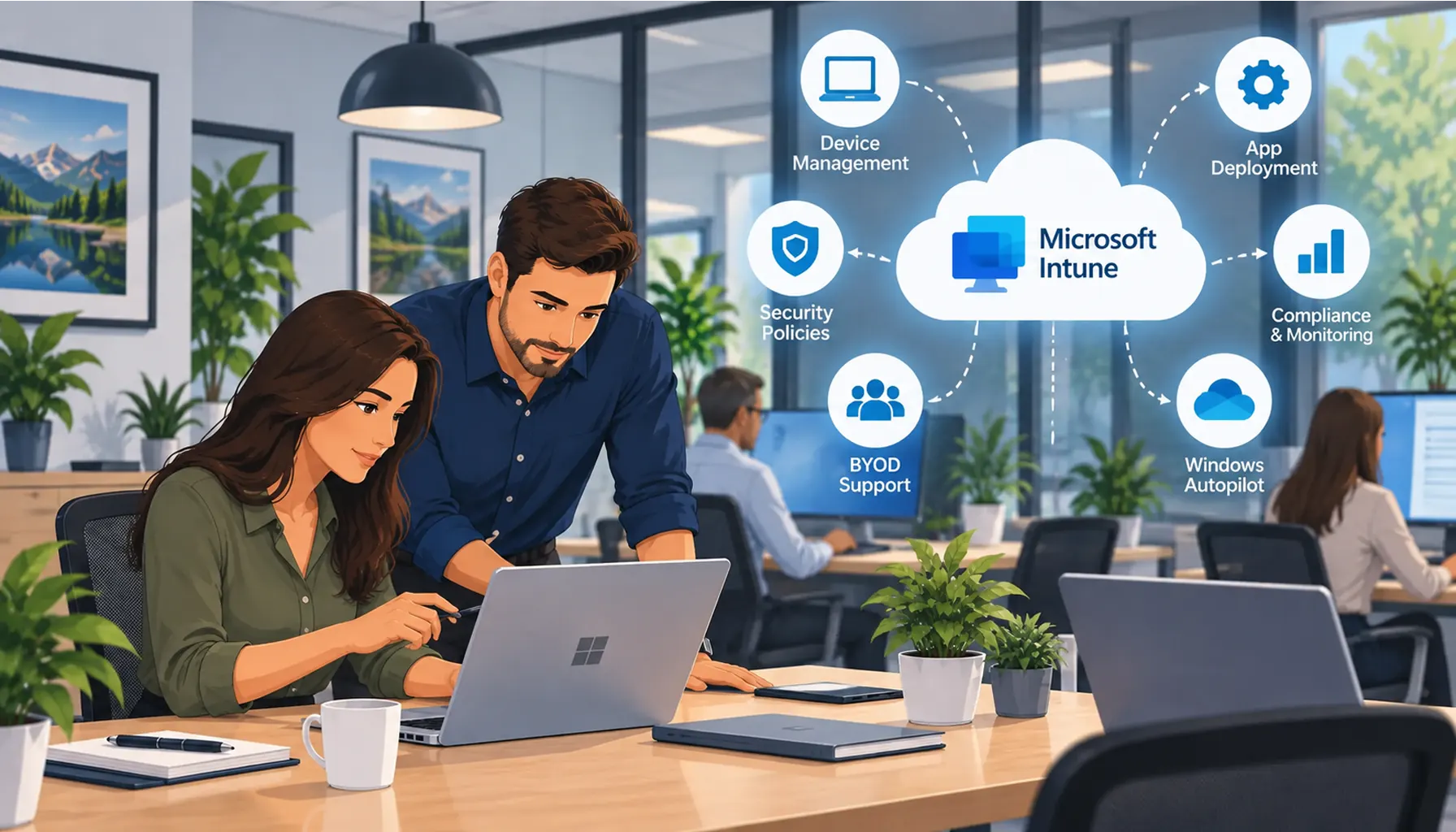
Microsoft Intune helps businesses manage and secure their devices from one central platform. It allows IT administrators to configure equipment, deploy applications, apply security policies and monitor whether devices meet the organisation's requirements, even when employees work from different locations.
At Telanova, we use Microsoft Intune to help small and medium-sized businesses manage their technology securely and consistently. Here's how it works, what it can do for your business and how we use it to support our clients.
What Is Microsoft Intune?
Microsoft Intune is a cloud-based device and application management platform that forms part of Microsoft's wider security and management ecosystem.
It allows businesses to manage supported Windows computers, Apple Macs, smartphones and tablets through a central administration system.
Rather than configuring every device individually, an IT administrator can create policies that are applied automatically to selected users and devices.
For example, a business could require all company laptops to have disk encryption enabled, use appropriate security software and install operating system updates.
Intune can also help organisations manage applications and protect company information on employees' personal devices without necessarily taking control of the entire device.
There are two important approaches:
- Mobile Device Management (MDM): Manages device settings, security requirements, applications and compliance on enrolled devices.
- Mobile Application Management (MAM): Protects company information within supported applications, including certain scenarios where the device itself is not fully managed.
Despite their names, these technologies aren't limited to mobile phones. Intune can also manage laptops and desktop computers.
Why Do Small Businesses Need Device Management?
When a company has only a handful of computers, managing them individually might seem straightforward. However, problems can develop as more employees, devices and locations are added.
Consider a business with 20 employees. Some work in the office, others work from home, and several regularly visit customers. Each person needs access to company email, Microsoft 365 and potentially specialist business applications.
Without centralised management, the business may encounter several challenges:
- New laptops take time to configure and prepare.
- Different employees have inconsistent security settings.
- Software updates are missed or delayed.
- Personal devices are used to access confidential information without suitable controls.
- Lost or stolen equipment creates uncertainty about company data.
- IT support staff struggle to identify which devices require attention.
- Employee departures leave behind devices or access arrangements that need reviewing.
Microsoft Intune helps address these challenges by giving businesses a consistent way to configure, secure and monitor their equipment.
For growing organisations, this can reduce repetitive administration while helping maintain a more predictable and secure IT environment.
1. Setting Up New Laptops with Windows Autopilot
Preparing a new employee's laptop can involve installing applications, configuring email, applying security settings and connecting the device to company systems.
When this process is performed manually for every employee, it can become time-consuming and inconsistent.
Windows Autopilot works alongside Microsoft Intune to simplify the preparation of supported Windows devices.
Once the appropriate device registration and configuration have been completed, a new laptop can be supplied to an employee who connects it to the internet and signs in using their work account.
The device can then enrol into management and receive the relevant configuration policies and applications.
How Does This Help a Growing Business?
Imagine a company recruiting three employees who will work from home.
Rather than arranging for every laptop to be manually configured at the office, the IT team can prepare the deployment centrally and arrange for registered equipment to be delivered to the employees.
When they sign in, the devices begin receiving the company's required settings and software.
This approach can provide several benefits:
- More consistent laptop configurations.
- Less repetitive manual setup.
- Easier preparation of equipment for remote employees.
- Standard security requirements from the beginning.
- A more scalable approach as employee numbers increase.
At Telanova, we use Windows Autopilot as part of our approach to device provisioning, helping clients introduce new equipment with the appropriate company settings.
Read more about setting up new staff laptops.
2. Protecting Business Laptops with Consistent Security Policies
A business may have antivirus software installed on every computer, but that doesn't necessarily mean all its devices are equally secure.
One laptop might have disk encryption disabled. Another could be missing important updates. A third might have security settings changed without the IT team knowing.
Microsoft Intune helps organisations apply and monitor consistent security configurations across supported devices.
Device Encryption with BitLocker
BitLocker is a Windows security feature that encrypts data stored on a computer.
If a laptop is lost or stolen, encryption helps prevent unauthorised people from reading the information stored on its drive.
Intune can be used to configure and monitor BitLocker on compatible Windows devices, including the secure management of recovery information.
For businesses handling customer records, financial information or confidential documents, encryption is an important security measure.
Microsoft Defender and Endpoint Protection
Intune can be used to configure supported Microsoft Defender security settings, including antivirus policies, firewall rules and other endpoint protections.
For organisations using Microsoft Defender for Business or Defender for Endpoint, the wider Microsoft security ecosystem can also provide threat detection and response capabilities.
This distinction matters: Intune manages and applies many security configurations, while Defender provides the underlying protection and threat-detection capabilities.
Attack Surface Reduction
Attack Surface Reduction (ASR) rules are designed to restrict certain behaviours commonly associated with malicious software.
For example, appropriate rules can help reduce the risk from suspicious scripts or potentially dangerous application behaviour.
Telanova uses Intune to configure relevant Microsoft Defender security policies, including Attack Surface Reduction controls, where supported by the client's environment and licensing.
Windows Local Administrator Password Solution (LAPS)
Local administrator accounts have elevated permissions on Windows computers. If the same administrator password is reused across multiple devices, a compromised password can create a wider security risk.
Windows LAPS helps manage local administrator passwords by supporting password rotation and secure storage.
Microsoft Intune can configure and manage LAPS policies for supported Windows devices.
This helps reduce the risks associated with shared or poorly managed local administrator credentials.
3. Controlling Which Devices Can Access Company Data
Protecting the information stored on a laptop is important, but businesses must also consider which devices should be allowed to access cloud services.
For example, should an employee be able to access confidential company documents from a personal computer that has outdated security software?
Microsoft Intune works with Microsoft Entra ID Conditional Access to help organisations make access decisions based on defined security requirements.
Intune can evaluate whether a managed device meets company compliance policies, while Conditional Access can use that information when deciding whether to permit access to protected services.
Depending on the configuration, policies might check whether a device:
- Has an acceptable operating system version.
- Uses the required encryption settings.
- Meets specified security and device-health requirements.
- Is enrolled and recognised by the organisation.
- Has been marked compliant with company policies.
If a device doesn't meet the required conditions, access to selected company resources can be restricted until the issue is resolved.
What Is Zero Trust Security?
Zero Trust is a security approach based on verifying access rather than automatically trusting someone because they are connected to a particular network.
Instead, access decisions consider factors such as the user's identity, the device being used and the resource being requested.
Intune contributes to this approach by providing device management and compliance information that can support access policies.
For a small business, the practical benefit is greater control over how employees access company information, particularly when working remotely.
4. Managing Personal Devices and BYOD
Bring Your Own Device (BYOD) describes situations where employees use their personal laptops, phones or tablets for work.
This can be convenient, but it raises important questions about company data and personal privacy.
What happens if an employee leaves? Can company information be removed without deleting their personal photographs? Should confidential documents be copied into personal applications?
Microsoft Intune supports different approaches to protecting company information on personal devices.
Protecting Business Applications
With supported application protection policies, businesses can control how company information is used within certain managed applications.
Depending on the device platform and application, these controls can include:
- Requiring additional authentication to access company information.
- Restricting the transfer of business data into unmanaged applications.
- Controlling how company documents are saved or shared.
- Removing managed company data from supported applications when access is withdrawn.
Some configurations can protect business applications without requiring full management of an employee's personal device.
However, the available controls differ between Windows, Android, iOS and other platforms, so the correct approach needs to be selected for each business.
What Happens When an Employee Leaves?
When someone leaves the company, IT administrators need to remove their access to business systems and review any company information held on their devices.
Depending on the management method, Intune can support actions such as retiring a managed device, removing managed application data or initiating a device wipe.
These actions are not interchangeable, and full-device wiping requires particular care, especially where personal equipment is involved.
Telanova helps clients establish appropriate controls so that business information can be managed without unnecessarily interfering with employees' personal data.
5. Installing and Managing Business Applications
Businesses often rely on a mixture of Microsoft 365 applications, browsers, communication tools and specialist software.
Manually installing and updating applications across dozens of computers can become an administrative burden.
Microsoft Intune supports centralised application deployment and management across compatible devices.
For example, an IT team might deploy Microsoft 365 applications to company laptops or install a specialist business application for employees in a particular department.
Different groups of employees can receive different applications according to their roles.
This helps businesses maintain more consistent software environments and makes it easier to introduce new applications as requirements change.
It can also support software removal when an application is no longer required.
6. Managing Updates, Device Compliance and Ongoing Maintenance
Device management doesn't end when a laptop is first configured.
Operating systems require security updates, applications change and business security requirements evolve.
Intune allows IT administrators to configure supported update policies and monitor aspects of device health and compliance.
Windows Update Management
For supported Windows devices, Intune can be used to configure update behaviour, deployment schedules and restart settings.
Updates can also be introduced to selected groups before being deployed more widely.
This staged approach can help identify compatibility problems before they affect every employee.
Telanova uses update policies and pilot groups to help clients maintain their devices while considering operational requirements.
Device Compliance Reporting
Intune provides information about whether enrolled devices meet configured compliance policies.
For example, an administrator may be able to identify laptops that are not meeting encryption or operating system requirements.
This gives the IT team a clearer picture of devices that may need investigation.
However, device compliance reporting is not a substitute for full security monitoring, vulnerability management or a complete patch-management strategy.
Why Ongoing Management Matters
Security settings that were appropriate when a device was first installed may need to change over time.
New threats emerge, employees change roles and businesses introduce different applications.
Regularly reviewing policies, devices and alerts helps ensure the management system continues to reflect the organisation's needs.
7. How Microsoft Intune Can Support Cyber Essentials
Cyber Essentials is a UK government-backed certification scheme designed to help organisations protect themselves against common cyber attacks.
Its technical requirements cover areas including secure configuration, security update management, malware protection, access control and firewalls.
Microsoft Intune can help organisations implement and manage some of the technical controls relevant to these areas.
For example, it can help with:
- Applying consistent device security settings.
- Configuring supported firewall and antivirus policies.
- Managing operating system updates.
- Restricting unnecessary local administrator privileges.
- Monitoring device compliance against defined requirements.
However, using Microsoft Intune does not automatically make a business Cyber Essentials compliant or certified.
Certification depends on the organisation's full scope, technical arrangements and satisfaction of the scheme's requirements.
Intune is one tool that can support a wider security and compliance programme.
Real Client Example: Microsoft Intune Deployment for an Ascot Healthcare Consultancy
One example of Telanova's work involved a healthcare consultancy based in Ascot, Berkshire.
The organisation wanted to strengthen device security, support its Cyber Essentials and GDPR-related controls, automate Windows configurations and ensure employees accepted company terms and conditions.
The Challenge
The business needed a consistent approach to managing company-owned laptops while also accommodating personal devices used for work.
Security requirements needed to be applied across different devices without introducing unnecessary disruption for employees.
What Telanova Implemented
Telanova used Microsoft Intune alongside its existing remote monitoring and management tools to introduce a structured device-management environment.
The work included:
- Enrolling company-owned Windows laptops using automated remote management tasks.
- Supporting manual enrolment for personal devices used for work.
- Configuring device compliance policies and Windows configuration profiles.
- Introducing policies through pilot groups before wider deployment.
- Implementing Conditional Access rules.
- Configuring terms-of-use acceptance requirements.
- Investigating device compatibility and compliance issues during testing.
Resolving Problems During Deployment
During the pilot stage, some laptops encountered issues involving Secure Boot and BitLocker detection.
Telanova investigated these problems and adjusted the deployment process before extending the configuration to the wider organisation.
This illustrates why a phased implementation is valuable. Introducing new security controls without testing can result in employees unexpectedly losing access to systems they need.
The Outcome
The project established a more consistent, centrally managed device environment aligned with the consultancy's operational and security requirements.
By combining device configuration, compliance monitoring and access policies, Telanova helped the organisation strengthen its approach to managing company equipment and work-related personal devices.
The example demonstrates that successful device management involves more than switching on Microsoft Intune. It requires planning, testing, troubleshooting and ongoing administration.
Is Microsoft Intune Included with Microsoft 365?
Microsoft Intune is included with some Microsoft 365 subscriptions, but not all.
Microsoft 365 Business Premium includes Microsoft Intune Plan 1, making it a relevant option for small and medium-sized businesses that want to combine Microsoft 365 productivity applications with additional device management and security capabilities.
Microsoft Intune is also available through certain enterprise subscriptions and separate licensing arrangements.
By contrast, businesses using Microsoft 365 Business Standard should not assume that full Intune device management is included.
Additional licensing may be needed for particular advanced capabilities, and some features depend on the operating system and other Microsoft services.
Before choosing a subscription, it's worth reviewing which features your organisation needs and whether your existing Microsoft 365 licensing already includes them.
Does Your Small Business Need Microsoft Intune?
Not every business needs the same level of device management.
However, Intune is worth considering if your organisation:
- Has multiple employees using company laptops or mobile devices.
- Employs remote or hybrid workers.
- Regularly sets up equipment for new starters.
- Allows employees to use personal devices for work.
- Handles confidential customer or business information.
- Needs more consistent security configurations.
- Wants better visibility of managed devices and their compliance status.
- Is growing and needs an approach that can scale.
For a business with 10 to 100 employees, centralised device management can be particularly valuable because the number of devices and security responsibilities may be increasing faster than the internal IT resources available to manage them.
The right solution depends on the organisation's existing equipment, working arrangements, security requirements and Microsoft 365 subscriptions.
How Telanova Supports Microsoft Intune
Microsoft Intune is a powerful management platform, but getting the best from it requires appropriate planning and ongoing administration.
At Telanova, we help businesses configure, deploy and maintain Microsoft Intune as part of their wider IT environment.
Our approach includes reviewing existing devices, understanding how employees work and selecting suitable security and management policies.
Depending on the client's requirements, we can assist with:
- Device enrolment and Windows Autopilot configuration.
- Security baselines and device configuration policies.
- Microsoft Defender integration and endpoint protection settings.
- BitLocker encryption and Windows LAPS.
- Conditional Access and device compliance.
- Business application deployment.
- BYOD and application protection arrangements.
- Windows update policies and ongoing device monitoring.
- Troubleshooting and policy reviews as requirements change.
Based in Bracknell, we support small and medium-sized businesses across Berkshire, including Reading, Wokingham and Ascot.
Our aim is to make device management practical, secure and manageable for the people using the technology every day.
Microsoft Intune FAQs
What does Microsoft Intune do for a small business?
Microsoft Intune helps a small business centrally manage devices, deploy applications, configure security settings and monitor compliance. It can simplify laptop setup and support secure working across different locations.
Is Microsoft Intune included in Microsoft 365 Business Premium?
Yes. Microsoft 365 Business Premium includes Microsoft Intune Plan 1. Some advanced capabilities may require additional licensing.
Is Microsoft Intune included in Microsoft 365 Business Standard?
No. Microsoft 365 Business Standard does not include the full Microsoft Intune Plan 1 device-management service. Businesses may need to upgrade or purchase suitable additional licences.
Can Microsoft Intune manage laptops used by remote employees?
Yes. Intune is cloud-based and can manage supported devices over the internet, allowing administrators to deploy policies, applications and configurations without employees needing to work from the office.
Can Microsoft Intune manage personal devices?
Yes. Intune supports personal-device scenarios through device management and application protection. The level of management and the information administrators can access depend on the enrolment method, device platform and policies used.
Can Microsoft Intune wipe a lost or stolen laptop?
Intune supports remote device actions, including wiping supported managed devices. The available actions depend on the device and management configuration. A remote action generally requires the device to communicate with the management service before it can be completed.
Does Microsoft Intune replace antivirus software?
No. Intune manages device settings and can configure supported security products, including Microsoft Defender. Antivirus and endpoint detection technologies provide the underlying protection against malicious software and other threats.
Can Microsoft Intune help with Cyber Essentials?
Yes. Intune can help implement and monitor technical controls relevant to Cyber Essentials, such as secure configurations, updates and endpoint protection. However, using Intune alone does not establish compliance or provide certification.
What is the difference between Microsoft Intune and Windows Autopilot?
Windows Autopilot helps prepare and enrol supported Windows devices during initial setup. Microsoft Intune provides the ongoing device management, application deployment, security configuration and compliance capabilities.
Is Microsoft Intune suitable for a business with 10 employees?
Yes. Intune can be useful even for relatively small businesses, particularly where employees work remotely, use company laptops or handle sensitive information. Whether it is worthwhile depends on the organisation's requirements and existing licensing.
Making Business Device Management Simpler
As businesses grow, managing laptops, applications and security settings individually becomes increasingly difficult.
Microsoft Intune provides a centralised way to configure devices, apply consistent security requirements and support employees wherever they work.
However, the technology is only part of the solution. Effective device management also requires suitable policies, careful implementation and ongoing support.
Need Help Managing and Securing Your Business Devices?
Whether you're setting up laptops for new employees, supporting remote workers or looking to improve your business security, Telanova can help you make better use of Microsoft Intune and Microsoft 365.
Our Bracknell-based team provides practical IT support and device management for growing businesses across Berkshire.
Explore Our Business IT Support Services or call 01344 989 530 to discuss your requirements.