Estimated Reading Time: 13 - 15 minutes
How much time does your business spend arranging appointments?
Whether you're booking customer consultations, arranging interviews or organising meetings with colleagues, scheduling can involve a surprising amount of administration.
One person suggests a time, another isn't available, and several emails later you're still trying to agree on a date. Multiply that across a busy working week and the time quickly adds up.
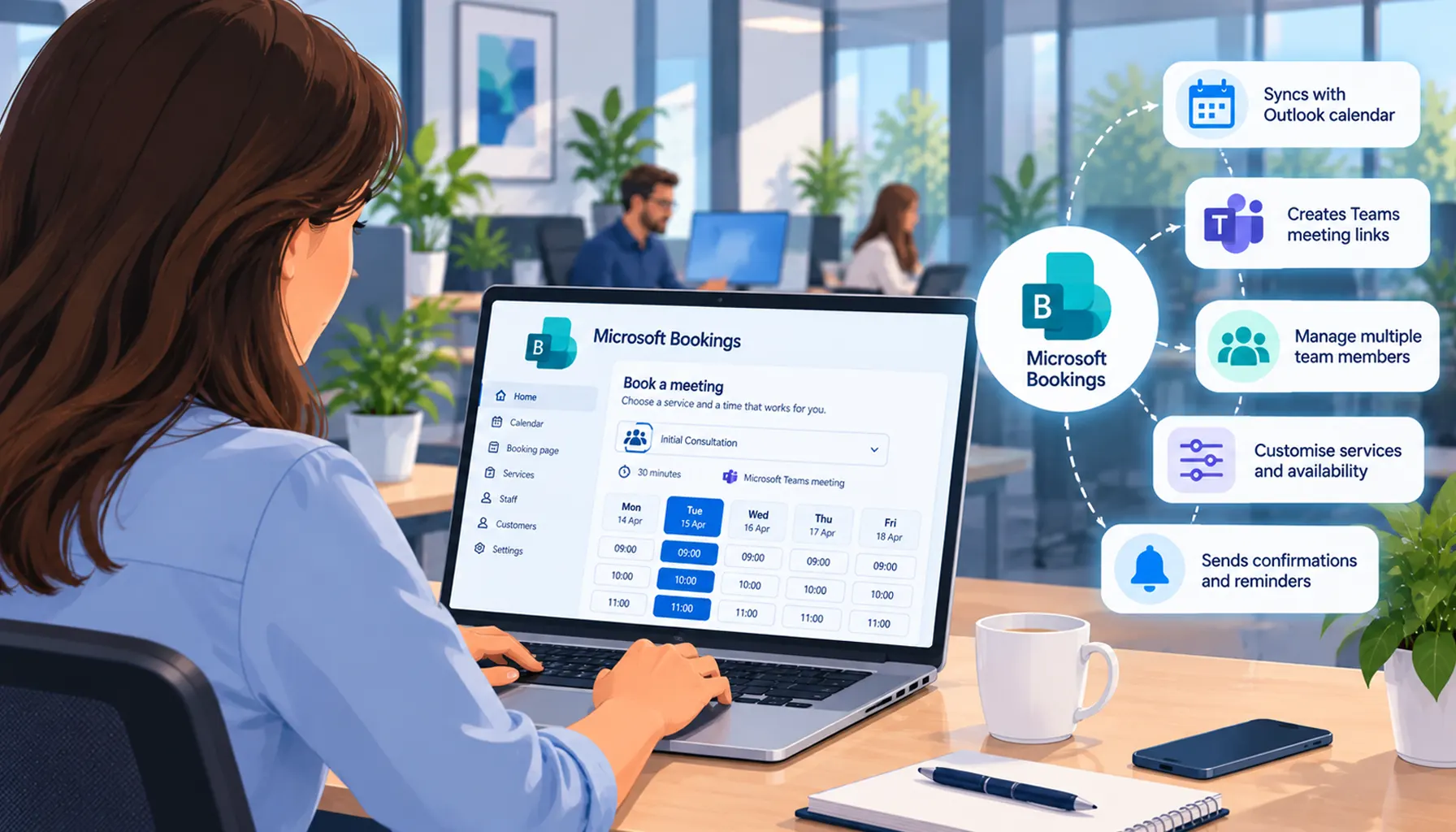
Microsoft Bookings is an appointment scheduling tool within Microsoft 365 that helps businesses reduce this back-and-forth by allowing people to book available meeting times online.
It works alongside Outlook and Microsoft Teams, helping individuals and teams manage appointments, share their availability and provide a more convenient booking experience for customers.
In this guide, we'll explain what Microsoft Bookings does, how it works, the difference between Personal and Shared Bookings, and how small businesses can use it to simplify everyday scheduling.
What Is Microsoft Bookings?
Microsoft Bookings is an online appointment scheduling application available with many Microsoft 365 business subscriptions.
It allows individuals and organisations to create booking pages where customers, colleagues and other contacts can select available appointment times.
Rather than asking someone to suggest several possible dates, you can share a booking link that displays the times you're available.
When an appointment is made, Bookings can add it to the relevant calendar, send confirmation emails and, where configured, create a Microsoft Teams meeting link.
Microsoft Bookings is particularly useful for businesses that regularly arrange:
- Customer consultations and introductory calls.
- Sales meetings and product demonstrations.
- IT support consultations and project discussions.
- Employee interviews and recruitment meetings.
- Training sessions and onboarding appointments.
- Professional services appointments.
- Internal meetings involving different departments.
Because Bookings integrates with Microsoft 365, businesses may be able to use functionality already included in their existing subscriptions rather than introducing a separate scheduling platform.
How Does Microsoft Bookings Work?
The basic principle is straightforward: you decide when appointments can be booked, and Microsoft Bookings displays the available times to the people using your booking page.
A typical booking process looks like this:
- Create a booking page: Set up a personal booking page or a shared page for your business or department.
- Define your appointments: Choose the meeting types, durations and other details.
- Configure availability: Specify when appointments can take place and how existing calendar commitments affect availability.
- Share your booking link: Send the link by email, add it to your website or include it in your email signature.
- Receive appointments: Customers or colleagues select an available time and complete the booking.
- Manage the appointment: Bookings handles the calendar event and can send confirmations, reminders and updates.
For example, an accountancy practice might offer 30-minute introductory consultations with prospective customers.
Instead of exchanging emails to arrange each appointment, the practice could publish a booking page showing available consultation times.
A potential customer selects a suitable appointment, enters the requested details and receives confirmation.
The practice can then prepare for the meeting without spending additional time coordinating diaries.
Personal Bookings vs Shared Bookings: What's the Difference?
Microsoft Bookings offers two main approaches to appointment scheduling: Personal Bookings and Shared Bookings.
Although both help people arrange meetings, they're designed for different situations.
Personal Bookings
Personal Bookings allows an individual to share their own availability and let other people book time directly with them.
It's useful for employees who regularly arrange one-to-one meetings, such as:
- Business owners scheduling introductory calls.
- Account managers arranging customer reviews.
- Consultants booking appointments with clients.
- Recruiters arranging individual interviews.
- Managers scheduling one-to-one discussions.
For example, a business owner could create two appointment types:
- 15-minute introductory call: For new enquiries and initial discussions.
- 45-minute consultation: For customers who need a more detailed meeting.
Each meeting type can have its own duration, description and availability.
Personal Bookings also supports public and private meeting types.
Public meetings appear on your personal booking page, while private meetings are accessible through their individual links.
This means you can offer general appointment types publicly while reserving particular meeting types for selected contacts.
Shared Bookings
Shared Bookings is designed for businesses, departments and teams where appointments may involve different employees.
Instead of each person managing a separate booking process, the organisation can create a shared booking page with services, staff members and scheduling rules.
For example, an IT support company might offer:
- Initial IT consultation.
- Microsoft 365 planning meeting.
- Cyber security review.
- New customer onboarding appointment.
Different employees can be assigned to the services they're responsible for delivering.
Shared Bookings can help coordinate staff availability, business hours and appointment types from one central system.
Which Should Your Business Use?
Use Personal Bookings when the appointment is primarily with one individual who wants to share their availability.
Use Shared Bookings when customers need to book a service provided by a team, department or group of employees.
Some businesses will benefit from using both.
How Microsoft Bookings Works with Outlook and Teams
One of the main advantages of Microsoft Bookings is its integration with applications many businesses already use.
Outlook Calendar Integration
Microsoft Bookings can use Outlook calendar availability to help prevent appointments being offered when a staff member is already busy.
For example, if an employee has an existing meeting in their Outlook calendar, that time can be excluded from their bookable availability when the relevant calendar settings are configured.
This reduces the need to maintain separate diaries for ordinary meetings and customer appointments.
However, calendar integration needs to be configured correctly. Staff availability, calendar permissions and whether existing events affect bookable times should all be checked during setup.
Microsoft Teams Meetings
For online appointments, Microsoft Bookings can generate Microsoft Teams meeting links.
This is particularly useful for businesses offering remote consultations, online demonstrations or customer support meetings.
Customers can receive the information they need to join the meeting without someone manually creating and distributing a separate Teams invitation.
Appointment Notifications and Reminders
Bookings can send confirmation messages when appointments are created and provide notifications when bookings change.
Shared Bookings also supports configurable customer reminders for applicable services.
These communications help ensure customers know when their appointment is taking place and can reduce avoidable confusion about meeting details.
Six Benefits of Microsoft Bookings for Small Businesses
1. Less Time Spent Arranging Meetings
Instead of repeatedly checking diaries and suggesting appointment times, employees can share a booking link.
This reduces repetitive administration and gives people more time to focus on their work.
2. A More Convenient Customer Experience
Customers can review available appointment times and select one that suits them.
They don't necessarily need to call during office hours or wait for someone to respond to an email.
For service businesses, making it easier to arrange an initial conversation can help remove friction from the enquiry process.
3. Fewer Scheduling Conflicts
By considering configured staff availability and existing Outlook calendar commitments, Bookings can help avoid overlapping appointments.
This is particularly helpful when employees have a mixture of internal meetings and customer-facing responsibilities.
4. More Consistent Appointment Lengths
Different meetings need different amounts of time.
A brief introductory call might take 15 minutes, while a detailed consultation could require an hour.
Bookings allows businesses to define appointment durations so that sufficient time is allocated for each service.
5. Better Coordination Across Teams
Shared Bookings can provide a central place for managing appointments involving multiple employees.
Rather than relying on one person to coordinate every diary, a team can use agreed scheduling arrangements.
6. Making Better Use of Existing Microsoft 365 Tools
Businesses sometimes pay for additional software without realising that their existing Microsoft 365 subscriptions already include useful capabilities.
Microsoft Bookings is one example of a tool worth reviewing before introducing another appointment scheduling service.
Whether it meets your requirements will depend on the complexity of your booking process and the features you need.
Practical Ways Small Businesses Can Use Microsoft Bookings
Microsoft Bookings isn't limited to businesses that traditionally take appointments.
It can be useful anywhere that arranging a meeting involves repeated communication or coordination.
Professional Services and Accountancy Firms
An accountancy practice could offer initial consultations, tax planning meetings and scheduled client reviews.
Different appointment types could have different durations and availability rules.
IT Support and Managed Service Providers
An IT provider could use Bookings for scheduled customer reviews, project planning meetings, Microsoft 365 consultations or onboarding sessions.
Urgent technical incidents would normally still need to follow the provider's established support and escalation procedures rather than relying on an appointment booking page.
Recruitment and HR Teams
Recruiters could use Personal Bookings to let candidates choose available interview slots.
HR teams could also use scheduled appointments for onboarding discussions or employee consultations.
Consultants and Business Advisers
Consultants who regularly meet clients could provide a booking link for introductory calls or follow-up meetings.
This can be particularly useful when working with customers across different locations.
Training Providers
Businesses delivering training could use Shared Bookings for certain scheduled sessions and appointments.
Shared Bookings also supports group appointment scenarios, although businesses requiring complex course management, payment processing or advanced capacity controls should assess whether a dedicated booking platform would be more suitable.
How to Set Up Microsoft Bookings
Getting started with Microsoft Bookings is relatively straightforward, although the options available depend on your Microsoft 365 subscription and your organisation's settings.
Step 1: Open Microsoft Bookings
Sign in to Microsoft 365 and open Microsoft Bookings from the available applications.
You can also visit book.ms and sign in with your Microsoft account.
Microsoft Bookings can also be accessed through supported Outlook and Microsoft Teams experiences.
Step 2: Choose Personal or Shared Bookings
If you're creating appointments for yourself, select your personal booking page.
If you're organising appointments for a team or department, create or open a shared booking page.
Step 3: Create Your Meeting Types
Define the appointments you want people to book.
For each meeting type, consider:
- A clear appointment name.
- A description explaining what the meeting covers.
- The appointment duration.
- Whether the meeting is online or in person.
- Who can book it.
- Which employees can provide the service, where applicable.
- The days and times when it should be available.
For example, a business might create a 30-minute introductory consultation and a 60-minute project planning meeting.
Step 4: Configure Your Availability
Decide when customers and colleagues should be able to book appointments.
You might want to offer consultations only on particular days, reserve mornings for project work or prevent appointments during lunch breaks.
For Shared Bookings, check business hours, staff schedules and calendar availability settings.
Step 5: Set Booking Rules
Review the scheduling settings before publishing the booking page.
Important options include buffer time, minimum notice and how far into the future people can make appointments.
Step 6: Customise and Share Your Booking Page
Shared booking pages can be customised with appropriate business information and branding options.
Once the page is ready, you can share the link with customers, add it to an email signature or make it available through your website.
Microsoft also supports embedding Shared Bookings pages into websites using an iframe, subject to your website's technical requirements.
Step 7: Test the Customer Experience
Before promoting the page, make a test booking.
Check that the appointment appears correctly, confirmation messages are received, staff availability is respected and online meeting links work as expected.
Testing is especially important for Shared Bookings pages involving multiple staff members.
Microsoft Bookings Settings Worth Configuring
Some of the most useful features in Microsoft Bookings are the settings that control when and how appointments can be made.
Buffer Time Between Appointments
Buffer time allows you to reserve additional time before or after an appointment.
For example, a consultant delivering 45-minute meetings might want a 15-minute break between sessions to prepare notes or review the next customer's requirements.
Without appropriate buffer time, a fully booked diary can leave little room for preparation or follow-up work.
Minimum Lead Time
Minimum lead time controls how much notice someone must give before booking an appointment.
If your team needs time to prepare for consultations, you might require bookings to be made at least 24 hours in advance.
This prevents customers from selecting last-minute appointments that staff cannot realistically prepare for.
Maximum Lead Time
Maximum lead time determines how far in advance appointments can be scheduled.
For example, a business might allow appointments to be booked only within the next 30 or 60 days.
This helps avoid committing staff to appointments too far into the future.
Appointment Duration
Different services can have different appointment lengths.
Setting appropriate durations helps customers understand how much time is available and prevents short meetings from being booked into time slots intended for longer discussions.
Staff Availability
For Shared Bookings, staff schedules can be configured to reflect working hours and service responsibilities.
This is particularly important when employees work part-time, have different roles or provide different services.
Booking Page Visibility
Not every appointment needs to be publicly bookable.
Personal Bookings supports public and private meeting types, while Shared Bookings provides controls over access to booking pages.
For internal meetings or sensitive appointment types, it's worth reviewing who should be able to access the booking page.
Is Microsoft Bookings Secure?
Microsoft Bookings operates within the Microsoft 365 environment and uses Microsoft services, including Exchange Online, to store appointment and scheduling information.
However, businesses still need to consider how they collect and manage customer information.
For example, a booking form may ask for a person's name, email address, telephone number or additional information about the appointment.
Businesses should consider:
- Collecting only the information genuinely needed for the appointment.
- Explaining how customer information will be used.
- Controlling which employees can access booking information.
- Reviewing staff access when employees leave or change roles.
- Avoiding unnecessary sensitive information in free-text booking fields.
- Ensuring booking arrangements align with relevant privacy and retention requirements.
For organisations handling sensitive personal information, such as healthcare providers or financial services firms, additional considerations may apply.
Using Microsoft 365 doesn't automatically establish GDPR compliance. The business remains responsible for its own data protection obligations and appropriate configuration.
Is Microsoft Bookings Included with Microsoft 365?
Microsoft Bookings is included with several Microsoft 365 subscriptions, including:
- Microsoft 365 Business Basic.
- Microsoft 365 Business Standard.
- Microsoft 365 Business Premium.
- Selected Microsoft 365 and Office 365 enterprise subscriptions.
Availability can depend on the specific licence, whether the service has been enabled by the organisation and the user's account configuration.
Microsoft Bookings is not automatically included with every product carrying the Microsoft 365 name, so it's worth checking your exact subscription before relying on it.
If you're already using a supported Microsoft 365 business subscription, you may have access to Bookings without purchasing another appointment scheduling product.
Microsoft Bookings vs Other Appointment Scheduling Tools
Microsoft Bookings isn't the only appointment scheduling platform available.
Other services offer similar features, and some provide specialist capabilities such as complex payment processing, advanced customer management or industry-specific appointment workflows.
The main attraction of Microsoft Bookings is its integration with Outlook, Teams and the wider Microsoft 365 environment.
For a business that primarily needs customers to book meetings with employees, it may provide everything required.
However, a business operating a complex booking system may need to consider additional requirements such as:
- Taking deposits or processing payments.
- Managing multiple locations and resources.
- Handling complex class capacities or waiting lists.
- Integrating with specialist customer management software.
- Applying detailed cancellation or rescheduling rules.
- Producing advanced appointment and revenue reports.
Before introducing another scheduling system, it's worth assessing whether Microsoft Bookings already meets your needs and where its limitations might matter.
Common Microsoft Bookings Mistakes to Avoid
Microsoft Bookings is relatively easy to start using, but a few configuration mistakes can create frustration for customers and staff.
Not Checking Outlook Calendar Availability
If existing calendar commitments aren't being considered correctly, staff may appear available when they already have meetings.
Check the relevant calendar integration and availability settings before publishing.
Allowing Appointments with No Preparation Time
Back-to-back appointments may look efficient but can leave employees without time for preparation, travel or follow-up tasks.
Use buffer time where appropriate.
Offering Too Many Meeting Types
A booking page containing numerous similar appointment options can confuse customers.
Start with a small number of clearly described services and expand only when necessary.
Forgetting to Review Staff Access
Shared Bookings pages should be reviewed when employees join, leave or change responsibilities.
Removing an employee's Microsoft 365 account does not necessarily remove every reference to them from existing booking configurations.
Using Bookings for Every Type of Enquiry
Not every customer request should be handled as a scheduled appointment.
Urgent IT support issues, emergencies and time-sensitive service requests may need dedicated support channels rather than a booking page.
The best results come from using Bookings for appointments that benefit from structured scheduling.
How Telanova Helps Businesses Make Better Use of Microsoft 365
Microsoft Bookings is one of several useful applications available within Microsoft 365 that businesses may not be using to its full potential.
At Telanova, we help small and medium-sized businesses get more from their Microsoft 365 environment, including its configuration, security, administration and day-to-day support.
Depending on your requirements, we can help you assess whether Microsoft Bookings is suitable for your business, review the relevant licensing and consider how it fits alongside Outlook, Teams and your existing working practices.
We can also help you identify other Microsoft 365 features that could simplify collaboration, reduce repetitive administration and improve how your employees work.
Our team is based in Bracknell and supports businesses across Berkshire, including Reading, Wokingham and Ascot.
Learn more about our business IT support services or explore our Microsoft 365 vs Google Workspace guide.
Microsoft Bookings FAQs
What is Microsoft Bookings used for?
Microsoft Bookings is used to schedule and manage appointments online. It allows customers, colleagues and other contacts to select available meeting times, while helping businesses manage calendars, confirmations and meeting arrangements.
Is Microsoft Bookings free with Microsoft 365?
Microsoft Bookings is included with several Microsoft 365 business subscriptions, including Business Basic, Business Standard and Business Premium. Availability depends on your licence and organisation settings, so it is worth checking your subscription.
What is the difference between Personal Bookings and Shared Bookings?
Personal Bookings allows an individual to share their own appointment availability. Shared Bookings allows a business or department to manage appointments involving multiple employees, services and schedules.
Does Microsoft Bookings work with Outlook?
Yes. Microsoft Bookings integrates with Outlook calendars and can use existing calendar availability when configured appropriately. This helps prevent appointments from being offered when employees are already busy.
Can Microsoft Bookings create Teams meetings?
Yes. Microsoft Bookings can create Microsoft Teams meeting links for online appointments, allowing customers and employees to join scheduled virtual meetings.
Can customers book appointments without a Microsoft 365 account?
Yes. Customers can generally use a public booking page without having their own Microsoft 365 subscription. Organisations can also configure restrictions that limit access to certain booking pages.
Can I add Microsoft Bookings to my website?
Yes. You can link to a Microsoft Bookings page from your website. Shared Bookings also supports embedding booking pages using an iframe, subject to your website's configuration.
Can Microsoft Bookings send appointment reminders?
Yes. Microsoft Bookings supports appointment notifications, and Shared Bookings can send configurable customer reminders for applicable services. The available settings depend on the booking type and configuration.
Can Microsoft Bookings manage appointments for several employees?
Yes. Shared Bookings allows organisations to add staff members, assign them to services and manage appointments according to their configured availability.
Is Microsoft Bookings suitable for a small business?
Yes. Microsoft Bookings can be useful for small businesses that regularly arrange consultations, customer meetings, interviews or other scheduled appointments. It is particularly worth considering if the business already uses Microsoft 365.
Make Appointment Scheduling Easier with Microsoft Bookings
Arranging appointments shouldn't require a long exchange of emails or constant checking of calendars.
Microsoft Bookings gives businesses a practical way to share availability, manage appointments and make scheduling easier for employees and customers.
For organisations already using Microsoft 365, it is worth exploring whether Bookings could replace some of the manual processes currently used to arrange meetings.
With the right configuration, it can become a useful part of your everyday business workflow.
Need Help Getting More from Microsoft 365?
Are you making full use of the Microsoft 365 tools your business already pays for?
Telanova helps businesses across Berkshire manage, secure and make better use of Microsoft 365, from Outlook and Teams to device management and wider IT support.
Whether you're reviewing your existing setup or looking for practical ways to improve how your team works, our Bracknell-based IT specialists can help.
Explore Our Business IT Support Services or call 01344 989 530 to discuss your requirements.